
Vidoza AI Video Maker
IT Hub InfoArt & Design
0.00.00 Reviews
- Version
- 1.0.1
- Installs
- 10.00K
- Age Rating
- Mature 17+
Screenshots
Our Review of Vidoza AI Video Maker
 Analysis by Appyee
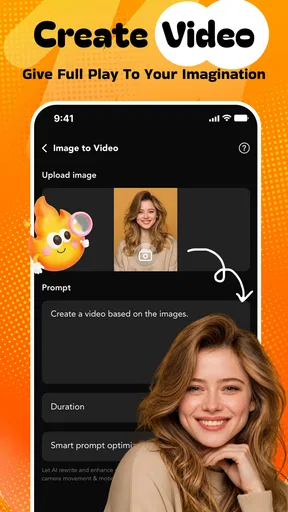
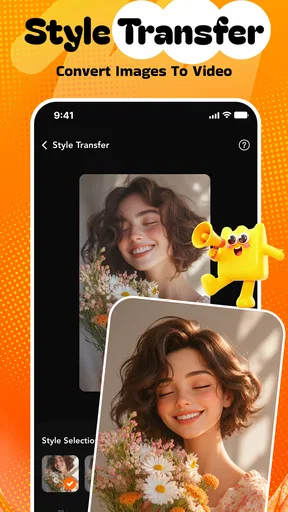
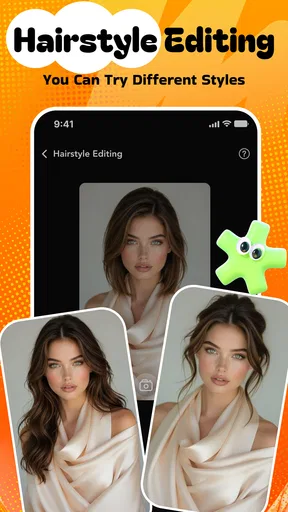
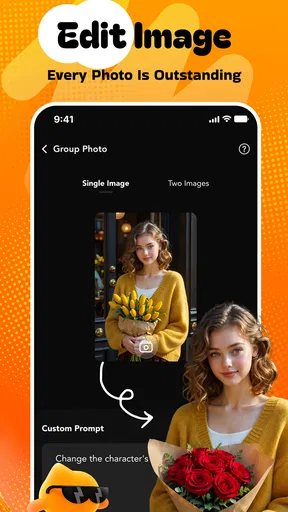
Turning a still image into something that feels alive is one of those ideas that sounds simple until you try to make the result look intentional. Vidoza AI Video Maker takes that basic challenge and puts it into a compact art and design app from IT Hub Info. Its focus is clear: use a photo as the starting point, then add AI-generated movement and visual effects so the final clip feels more cinematic than a normal slideshow.
I found the appeal easy to understand during the first few sessions. A single photograph can become a short visual moment instead of remaining a static image in the camera roll. That makes the app interesting for people preparing social posts, personal memories, mood boards, visual experiments, or quick presentation material. It is free to install, although optional purchases range from $1.99 to $99.99 per item, so the real question is not whether it is fun to try, but whether it becomes useful enough to keep returning to.
What the first week feels like
The strongest part of the early experience is the short distance between an idea and a result. You choose an image, apply the app’s cinematic treatment, and let motion and effects change how that image is perceived. That immediacy matters. Many creative tools ask you to learn a timeline, understand layers, adjust keyframes, or search through complicated menus before anything looks presentable. Vidoza AI is aimed at the opposite experience: start with a photo and see what kind of moving interpretation the app can produce.
That makes it particularly approachable if you do not normally edit video. I would recommend it to someone who wants to animate a travel photo, create a dramatic visual for a personal project, or make a more expressive post without becoming a full-time editor. The app’s store summary promises cinematic AI videos with motion and effects in seconds, and that description matches the central experience without requiring the user to think like a professional filmmaker.
The first-week novelty comes from testing different kinds of images. A portrait, a landscape, an architectural shot, and a close-up object do not carry motion in the same way. Images with a clear subject and strong separation from the background usually give the concept more room to work. A busy photograph can still be worth trying, but the effect may feel less controlled because there are more visual elements competing for attention.
One useful habit is to prepare several versions of the same image before judging the app. Crop one tightly around the subject, keep another with more surrounding space, and try a third with a different focal point. This is more effective than repeatedly applying effects to one poorly framed source. The quality of the starting photo has a direct influence on whether the finished clip feels cinematic or merely decorated.
I also found that the app makes more sense as a finishing tool than as a complete video-production environment. It can give a still image energy, but it should not be treated as a replacement for an editor built around multiple clips, precise audio timing, detailed captions, or complex scene construction. If your goal is a quick visual transformation, its focused design is an advantage. If your goal is a carefully directed short film, the limited starting point becomes important.
Who gets the most from the novelty
Casual creators are the obvious audience. Someone who posts occasionally may prefer a fast transformation over learning a traditional editing suite. Artists can also use it for concept exploration: a moving version of a sketch, product image, or reference photograph can reveal a mood that is difficult to imagine from a still frame. It is also suitable for people who want to make ordinary images feel more deliberate without spending a long evening editing.
A realistic everyday example would be a small business owner preparing a weekend post. They have a clean product photograph but no time to shoot a full promotional video. Turning that still into a short motion-based visual can make the post feel less static. The result will not replace a proper product shoot, but it may be enough for a quick announcement or story where speed matters more than complete control.
Another good use is a personal memory project. Instead of placing several photos into a basic slideshow, I could give selected images individual movement and then use the resulting clips in a larger edit. The app is most valuable in that role when it adds a distinct visual layer rather than trying to handle every part of the project.
People who need exact repeatability should approach it differently. AI-assisted effects often appeal because they introduce interpretation, but that same interpretation can make a result feel less predictable than a manually animated image. If a client expects the same movement, framing, and timing every time, a conventional editor may be the safer choice.
From quick experiment to a monthly habit
The first week answers whether the idea is entertaining. The following weeks answer whether it solves a recurring problem. For me, the lasting value depends on having a steady supply of suitable images and a reason to publish or share them. Without that, the app can become a one-session curiosity: impressive enough to try, but not essential enough to open again.
Its best recurring role is as a visual shortcut. When I have a photo that feels too ordinary for a post but does not justify a full video shoot, an AI motion treatment can bridge that gap. This is a narrower benefit than a complete editing suite offers, but it is also easier to remember. Instead of asking how to build a project from scratch, I can ask whether this particular image would benefit from movement.
That distinction is important for long-term use. A broad editor can do more, yet its complexity may discourage occasional creators. Vidoza AI is easier to justify when the same small task appears repeatedly: refreshing older images, creating quick promotional material, adding atmosphere to artwork, or preparing visual content for a social channel.
There is also a practical workflow advantage in separating creation from assembly. I would use the app to generate individual animated assets, then move to another tool if I needed a longer sequence, music, captions, or several transitions. This keeps the app’s job clear. Trying to force every stage into one specialized tool usually creates more friction than using two simple tools for different purposes.
The free entry point helps with this evaluation. I can test whether the style fits my photos before deciding whether paid items are worthwhile. However, I would not treat the existence of in-app purchases as a reason to buy immediately. The useful test is repetition: if I am still making clips after the initial excitement and the available effects consistently suit my work, a purchase may make more sense. If I only want to experiment once, spending money would be difficult to justify.
The broad purchase range, from $1.99 to $99.99 per item, also means I would pay close attention before confirming anything. Those are very different levels of commitment. For a casual user, the sensible approach is to begin with the free experience, identify a specific recurring need, and avoid buying simply because an effect looks interesting in a single preview.
How it compares with familiar alternatives
Compared with a standard photo editor, Vidoza AI offers a more direct path to motion. A normal photo editor is usually better for correcting color, removing distractions, retouching, composing layers, or preparing a polished still image. If the image itself needs repair, I would handle that first in the appropriate tool. Vidoza AI becomes more attractive after the photo is already usable and the missing ingredient is movement.
Compared with a traditional video editor, it trades control for speed. Timeline-based apps are better when I need to choose exactly when an image moves, how far it moves, how effects overlap, and how several clips relate to one another. They also make more sense for sound-led projects and detailed storytelling. Vidoza AI is better when the desired outcome is a quick transformation rather than a carefully engineered sequence.
Compared with a basic slideshow maker, the appeal is atmosphere. A slideshow can arrange images efficiently, but it may leave each photograph feeling like a separate card. AI-generated motion can make individual images feel more like scenes. The trade-off is that a slideshow is often more predictable, while an AI treatment may produce a look that needs reviewing before it is ready to share.
That review step should be part of the workflow, not an afterthought. I would watch the entire result rather than judging it from a thumbnail. Look for movement that distracts from the subject, effects that overwhelm important details, or a visual rhythm that feels repetitive when several clips are placed together. The fastest way to improve the final project is often to reject one weak animated image instead of trying to rescue it with more effects.
Maintenance, fatigue, and the cost of returning
The maintenance burden is relatively low in concept because the app revolves around individual images rather than a large project library. I do not need to maintain a complicated editing structure just to create a short result. That is a genuine advantage for occasional users who want something they can pick up after a break without relearning an entire workflow.
Still, low maintenance does not mean zero effort. A repeatable process helps. I would keep original photos separate from exported versions, use clear filenames, and decide in advance where each finished clip will be used. Without that small amount of organization, animated copies can quickly become difficult to distinguish from source images, especially when several variations of one photograph look similar.
The more serious long-term burden is creative selection. The app can make it easy to produce a moving image, but it cannot decide whether the movement contributes anything. If every photo receives the same dramatic treatment, the results may begin to look interchangeable. A useful rule is to animate only images where motion supports the subject: a portrait that benefits from depth, a landscape that gains atmosphere, or an artwork that becomes more expressive when its visual structure shifts.
That rule also reduces fatigue. The first few effects may feel exciting because the contrast with a still image is so noticeable. After repeated use, the surprise fades. What remains is whether the output is consistently useful. I would vary the source material and use the app selectively rather than turning every image into a cinematic clip. Restraint gives the effect more impact and prevents a personal feed or project from becoming visually noisy.
Another source of fatigue is the gap between a promising preview and a finished piece. A result may look impressive in isolation but fail when placed beside other clips. Similar movement patterns can make a sequence feel flat, while overly strong effects can compete with captions or narration added later. For a multi-image project, I would generate more options than I need, then keep only the versions that have different visual roles.
There is also a financial fatigue question. A free app with optional purchases can remain comfortable for occasional use, but repeated experimentation may encourage impulse buying. I would decide on a purpose before paying: for example, a small set of images for a specific project. If I cannot name the project or the recurring benefit, I would keep using the free experience or return to a conventional editor with clearer control over the final result.
Questions I would consider before installing
One practical question is whether an older device can run it. The app supports Android seven point zero and later, which gives it a broad compatibility range for Android users. Even so, AI-assisted visual processing can feel more demanding than ordinary photo adjustments, so I would leave enough storage for source images and exported clips and avoid judging performance from a single quick attempt.
Another question is whether it is genuinely free. Installation costs nothing, but optional purchases are available inside the app. I would treat the free access as an opportunity to test the workflow, not as a promise that every creative option will remain free. Before committing to a paid item, I would check exactly what it adds and whether it solves a problem I actually encounter.
Some readers will also wonder whether it is suitable for younger users. The content rating is Mature seventeen plus, so I would not choose it casually for a child’s creative activity. Adults should also remember that the app’s category does not automatically make every source image appropriate for every audience; the final content still depends on what the user imports and creates.
Another important question is whether it can replace a professional editor. In my view, no. It is a focused way to add motion and effects to photos, not a substitute for a full production workflow. I would choose a more conventional app when I need exact timing, extensive audio work, detailed typography, complex compositing, or dependable control over every frame.
Finally, I would ask whether the developer’s current release feels mature enough for a regular workflow. IT Hub Info lists version one point zero one, and the app has passed ten thousand installs. That gives it an initial user base, but I would still keep backups of original images and treat it as a focused creative utility rather than the only place where important work exists.
My long-term verdict
After the novelty fades, Vidoza AI earns space on my device only when I use it as a deliberate shortcut. It is not the app I would open for every editing task, and it does not remove the need for judgment. Its value is more specific: it helps turn a suitable photograph into a moving visual quickly, with less technical effort than building the animation manually.
I would recommend it to casual creators, artists exploring motion, and small teams that need occasional visual content without setting up a full production process. It is especially appealing when the source image is already strong and the goal is to add atmosphere rather than repair or redesign the image.
I would skip it if I mainly need photo correction, precise video editing, or repeatable client work. I would also be cautious if I am easily tempted by paid effects, because the free installation can lead naturally into optional spending without guaranteeing that the app becomes part of a lasting routine.
My final view is positive but selective. The first-week appeal is real, and the month-to-month value can be real too, provided I have a continuing need for animated photo content. The maintenance is manageable, while the main fatigue comes from overusing similar effects and confusing fast generation with finished creative work. Its lasting strength is not endless novelty; it is the small, useful gap it fills between a static photo and a fully edited video.
Verdict
Strengths of Vidoza AI Video Maker
- Turns simple prompts into polished short videos quickly.
- Offers templates for social media formats and campaigns.
- AI-assisted editing reduces the need for technical skills.
- Supports fast experimentation with multiple video concepts.
- Useful for creating promotional content on a limited budget.
Limitations of Vidoza AI Video Maker
- AI-generated scenes may occasionally look unnatural or inconsistent.
- The best templates and assets may require a paid subscription.
- Export quality and options can vary by plan or project type.
- Longer videos may take noticeably more time to process.
- Results often need manual editing to match a specific brand style.
Similar Picks in This Category
View All
Canva: AI Photo & Video Editor
Canva4.8

PENUP – Drawing-sharing SNS
Samsung Electronics Co., Ltd.4.5

Crafto
Kutumb App4.6

Sketchbook
Sketchbook4.1

ibis Paint X
ibis inc.4.5

Adobe Express: AI Photo, Video
Adobe4.6
Frequently Asked Questions
What is Vidoza AI Video Maker and what can I use it for?
Vidoza AI Video Maker is designed to help users create short videos with the assistance of artificial intelligence. It can be useful for social media posts, promotional clips, presentations, storytelling, and casual personal projects. Depending on the available version, you may be able to combine text, images, music, templates, effects, and automated editing tools without needing advanced video-production experience.
Is Vidoza AI Video Maker suitable for beginners?
Yes, the app is generally aimed at users who want to produce videos quickly without learning complex editing software. Its template-based workflow and automated features can simplify tasks such as arranging visual elements, adding transitions, and matching content with music. However, beginners should still expect to spend some time learning where the editing controls are and checking the final result before exporting.
Does Vidoza AI Video Maker require an internet connection?
Most AI-powered video makers require an active internet connection for at least some functions because processing may take place on remote servers. Features such as generating content, applying AI effects, downloading templates, or synchronizing projects may not work fully offline. Before starting an important project, make sure your connection is stable and confirm whether the app has any offline editing or export limitations.
Is Vidoza AI Video Maker free to download and use?
The application may be available to download at no initial cost, but free access does not necessarily mean that every feature is included. AI generation limits, premium templates, higher-quality exports, watermark removal, music libraries, or advanced editing tools may require in-app purchases or a subscription. Review the pricing screen and trial conditions carefully before confirming payment.
What should I know about privacy and uploaded content in Vidoza AI Video Maker?
Before uploading personal photos, videos, voice recordings, or other sensitive material, read the app’s privacy policy and terms of service. AI processing may involve transferring content to online servers, and the way files are stored or deleted can vary. Avoid uploading confidential information, verify the permissions requested by the app, and use only media that you own or have permission to edit and publish.
